
Inviting Teammates
You can invite unlimited Teammates to your Workflow account for free. Click here to invite your team
Teammates can:
View your entire Workflow space
Join any project
Leave feedback on your work
Create new text-only tasks & design requests
Help organise the work, such as moving tasks on the board, or adding meta-data like labels, assignees and due-dates.
Teammates cannot:
add new creative work to Workflow.
To do this, upgrade them to a paid "Creative" role.
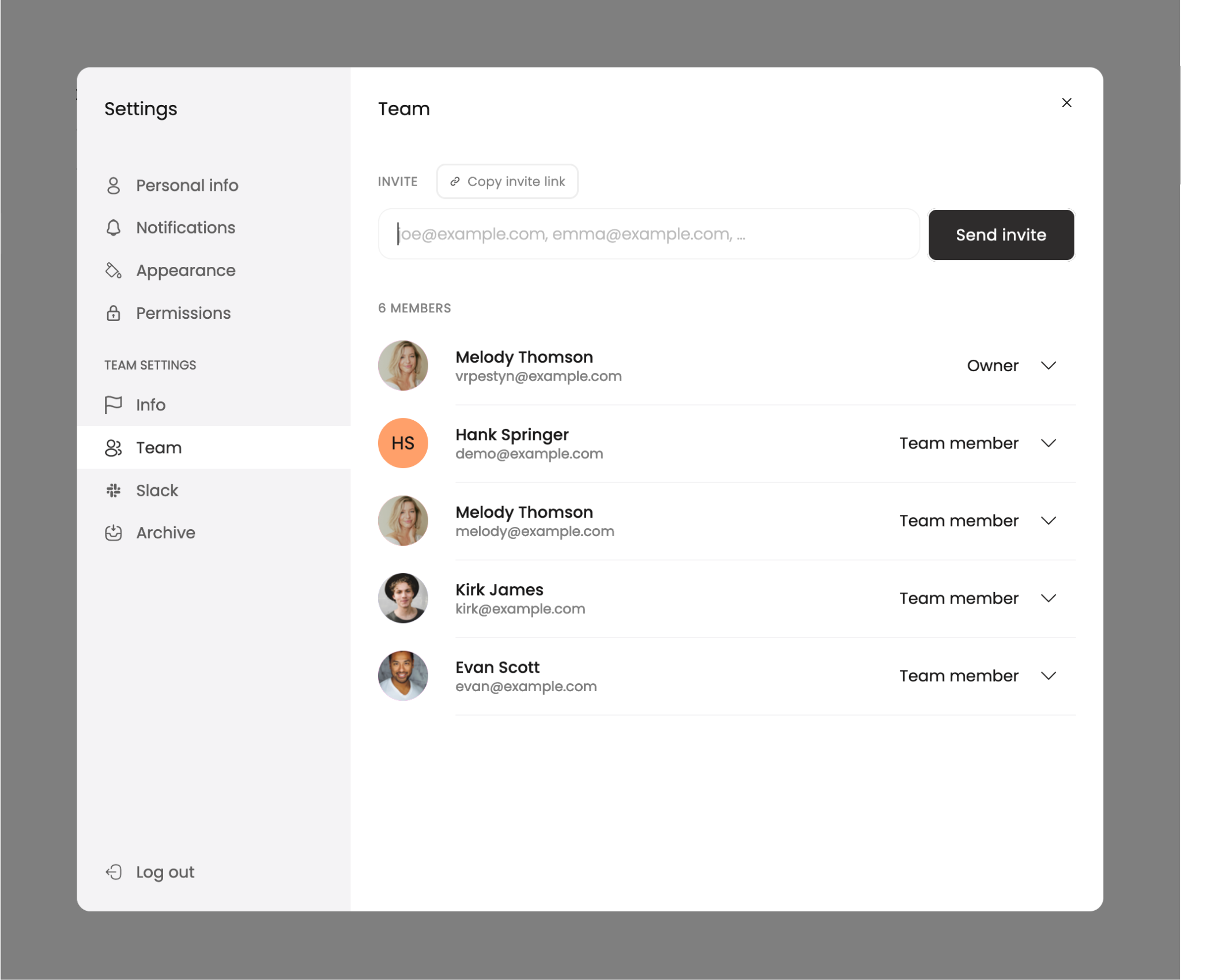
Manage your team in Workflow by inviting and managing teammates under Settings > Team. In this section, you can manually add and remove teammates from your workspace and manage their roles.
How to Invite Teammates
Click Invite Team at the bottom of the left-hand sidebar, or navigate to Settings > Team. You can invite people via email or share an invitation link.
Teammates have full access to your workspace. They can view and edit tasks, public projects, and other data within the workspace.
How to Remove Teammates
Select
Invite Teamat the bottom of the left-hand sidebar or navigate toSettings>Team.Find the user you wish to remove, click the dropdown button to the right of their name, and select
Remove. They will no longer have access to your workspace.
How to Hide Projects from Teammates
If you want to create a project that teammates cannot see, set it to private. To do this, go the project's Project Settings > Settings and toggle the option to make the project private.
Owner Roles
Users assigned the Owner role in Workflow have special permissions. Owners can:
Remove teammates
Delete a Workspace
Change user roles
Only Owners can elevate another teammate's role to "Owner."