
What Reviewers See
We know many reviewers are not very tech savvy and most don't want to sign up to a new tool. Workflow has this covered, with a simple interface that anyone can use, a short guided tour for first-time users, and the ability for reviewers to leave comments without an account
Simple interface
Most collaborative creative tools are power-tools designed for creatives first, and reviewers second. This leaves many reviewers confused and needing help to use the tool.
Workflow's interface is designed to focus all of the attention on one piece of creative work, and give your reviews a simple, limited set of controls for navigating the work and leaving feedback.
Guided tour
When your reviewer first opens the app, a short guided tour will show them the following:
Click anywhere on the canvas to leave a comment
Use the record screen button to leave voice and screen recorded feedback
Use the version menu to view previous versions
This is simple, easy and we've found very effective for getting anyone using Workflow.
No account needed
When you share a task using the Anyone can view and comment option, reviewers can open the link and leave comments without creating a Workflow account or providing their email.
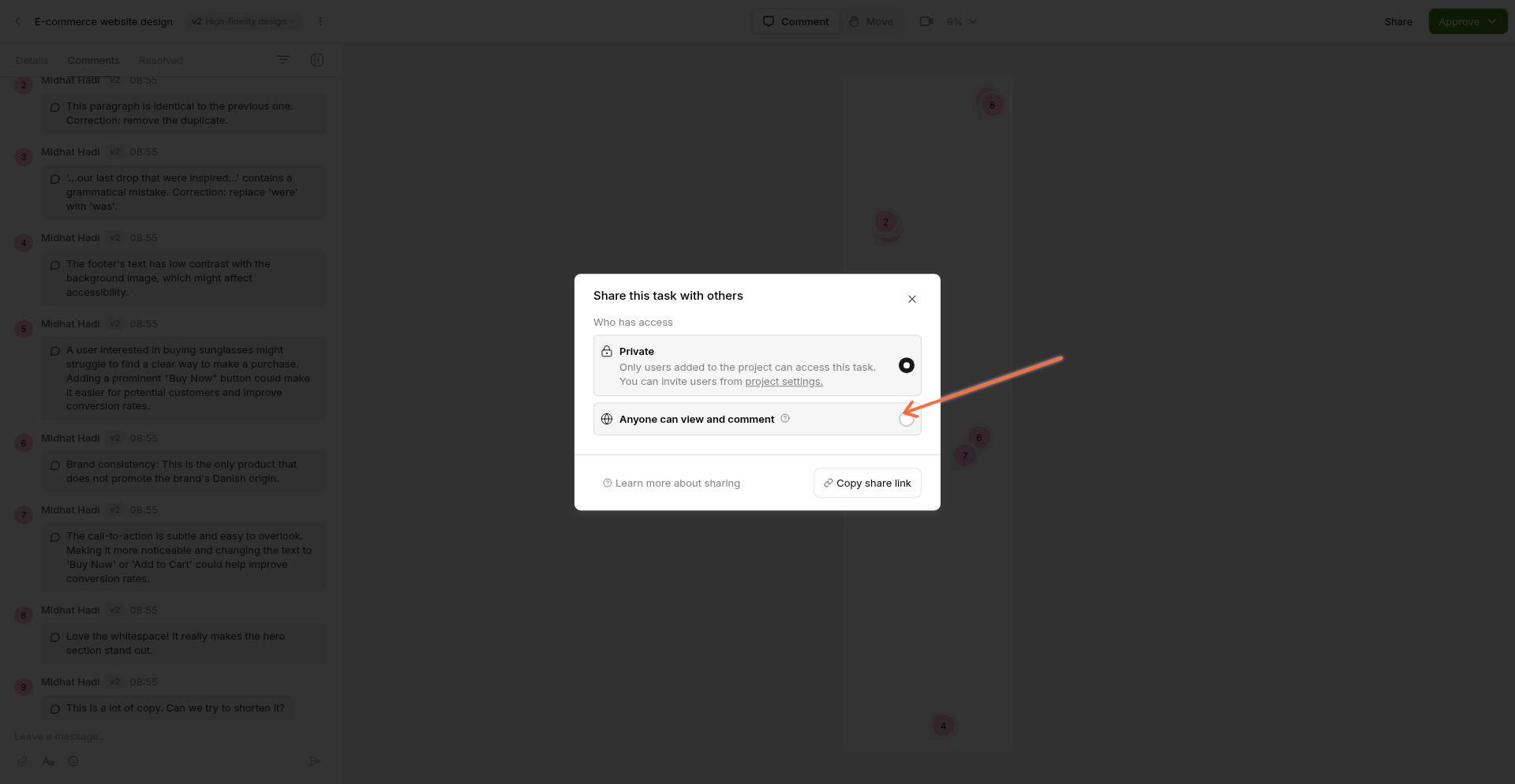
To enable this:
Open the task you want to share
Click Share in the toolbar
Select Anyone can view and comment — the option notes that reviewers can access even without an account
Copy and send the link to your reviewers
When reviewers open the link, they see a focused view of your work with a simple comment sidebar. They can click anywhere on the canvas to leave feedback or use the message composer in the sidebar.

Notifications
Reviewers who comment via share links (without providing an email) won't receive email notifications. For projects where you want reviewers to get updates, consider inviting them as guests instead.
Guests and reviewers who provide contact information will receive an email when:
You reply to one of their comments
You add a sidebar message or screen recording
You upload a new version of the work
If multiple notifications occur within a short time, they're batched into a single email to prevent inbox overload.