
Versions
You may need to go through a couple of rounds of review. Thankfully, versioning can help keep this organized. No more looking for "final_final" versions of a file.
Versioning gives you a clear history of all past comments and decisions made across all previous versions of the work.
This gives everyone a single source of truth to prevent misunderstandings, and allows you to compare the current version to previous versions to refer back to previous ideas.
How to add a new version for a website
Just publish a new version of your site! The latest published version of your site will always be shown in Workflow.
How to add a new version of anything else
For images, PDFs, videos, and anything else you upload, after making changes, you can add the new version to Workflow.
Open your work.
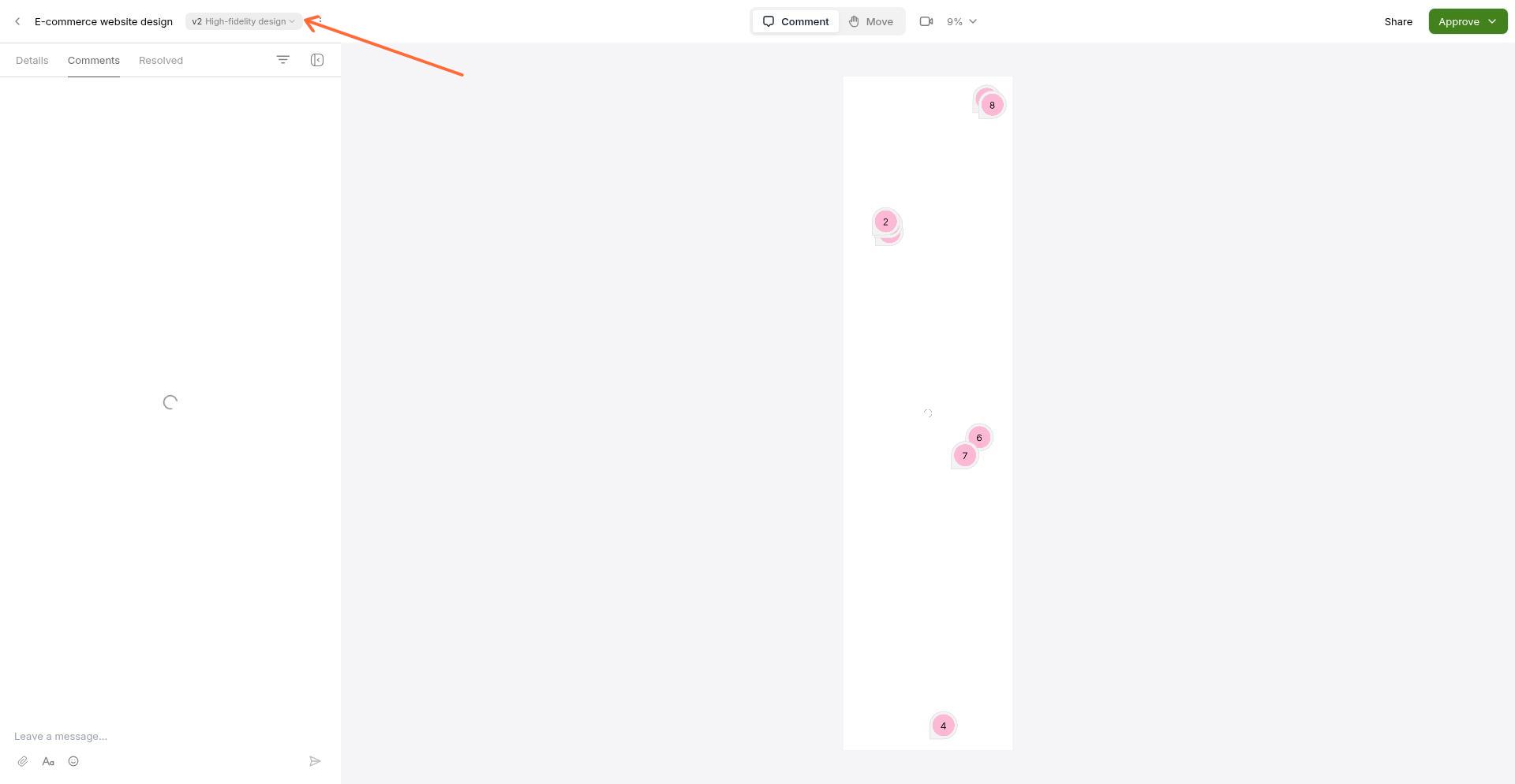
Click on the version selector in the top left of the screen.
Click Add version.
How to view previous versions
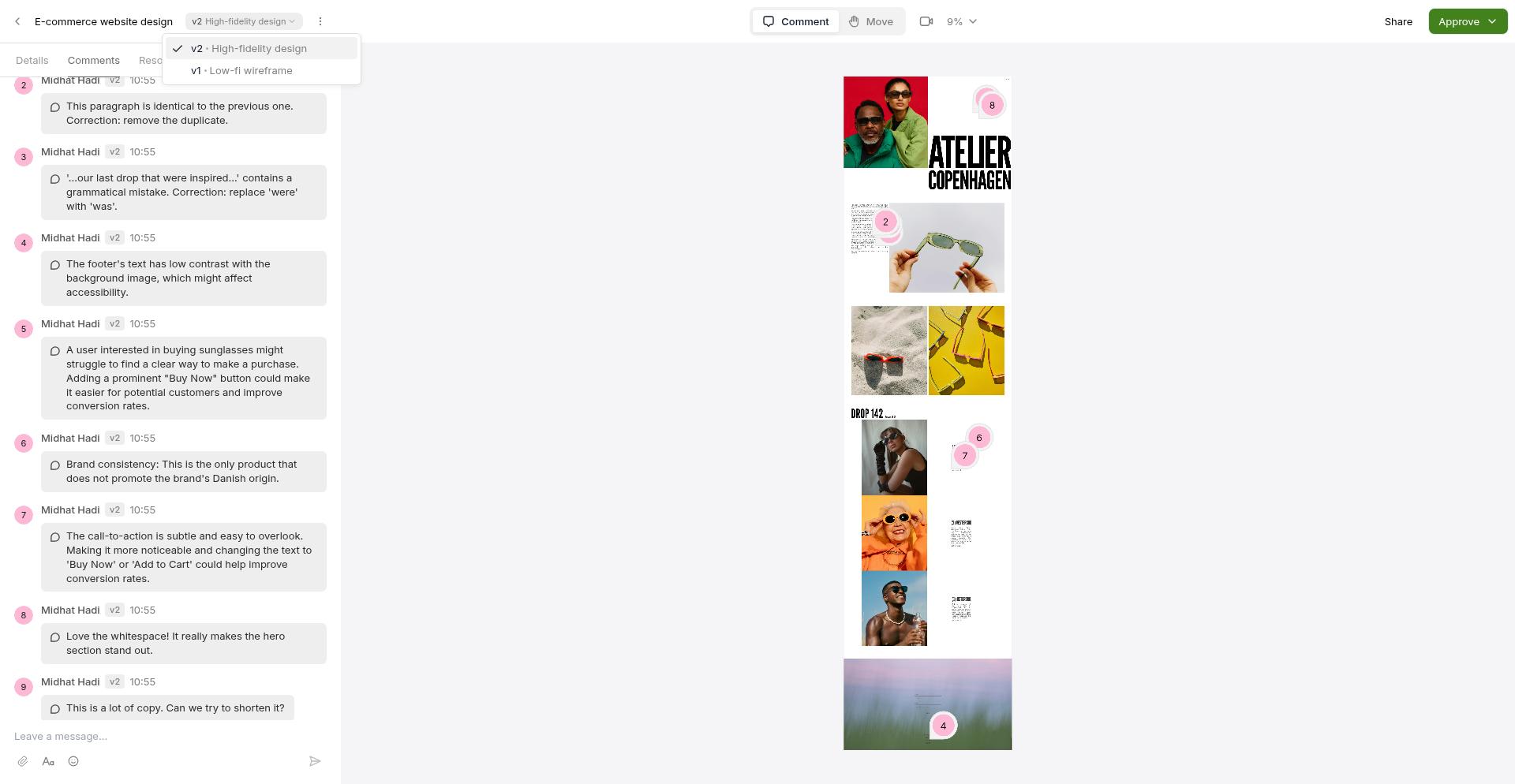
Click the version selector in the top left.
Select the version you want to view.
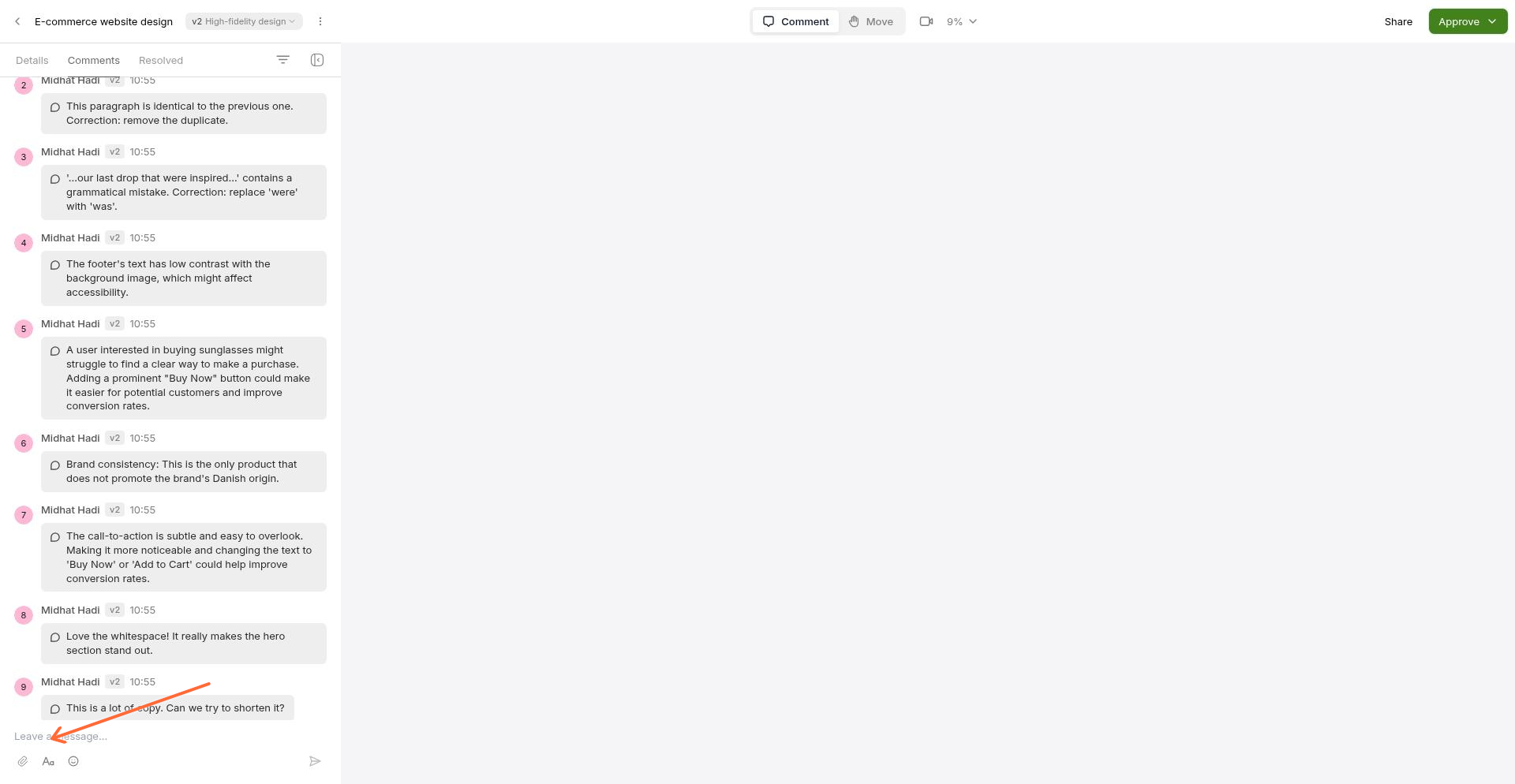
Each version preserves its own comments and feedback, so you can review the history of discussions across every iteration.
Once a version is approved, you can compare past versions to see how the work evolved. Learn more about approving work or see the full workflow in Getting Started.