
How to use the Figma integration in Workflow
How to use the Figma integration in Workflow
Overview
The Figma integration lets you add Figma designs and prototypes directly to Workflow and sync feedback comments back to Figma. This keeps your design reviews in one centralized place while ensuring feedback reaches the files where your team designs.
What this means: Comments you leave on Figma content in Workflow automatically sync to Figma, but comments made in Figma are not sent back to Workflow. For the smoothest experience, use the Figma plugin to upload designs—this enables full comment synchronization.
Prerequisites
A Figma account (free or paid)
Access to a Figma file or prototype you want to review
Appropriate sharing permissions if you're using someone else's file
Plan availability
The Figma integration is available on all Workflow plans (Free and Standard). Each user can independently authorize their Figma account.
Before you begin
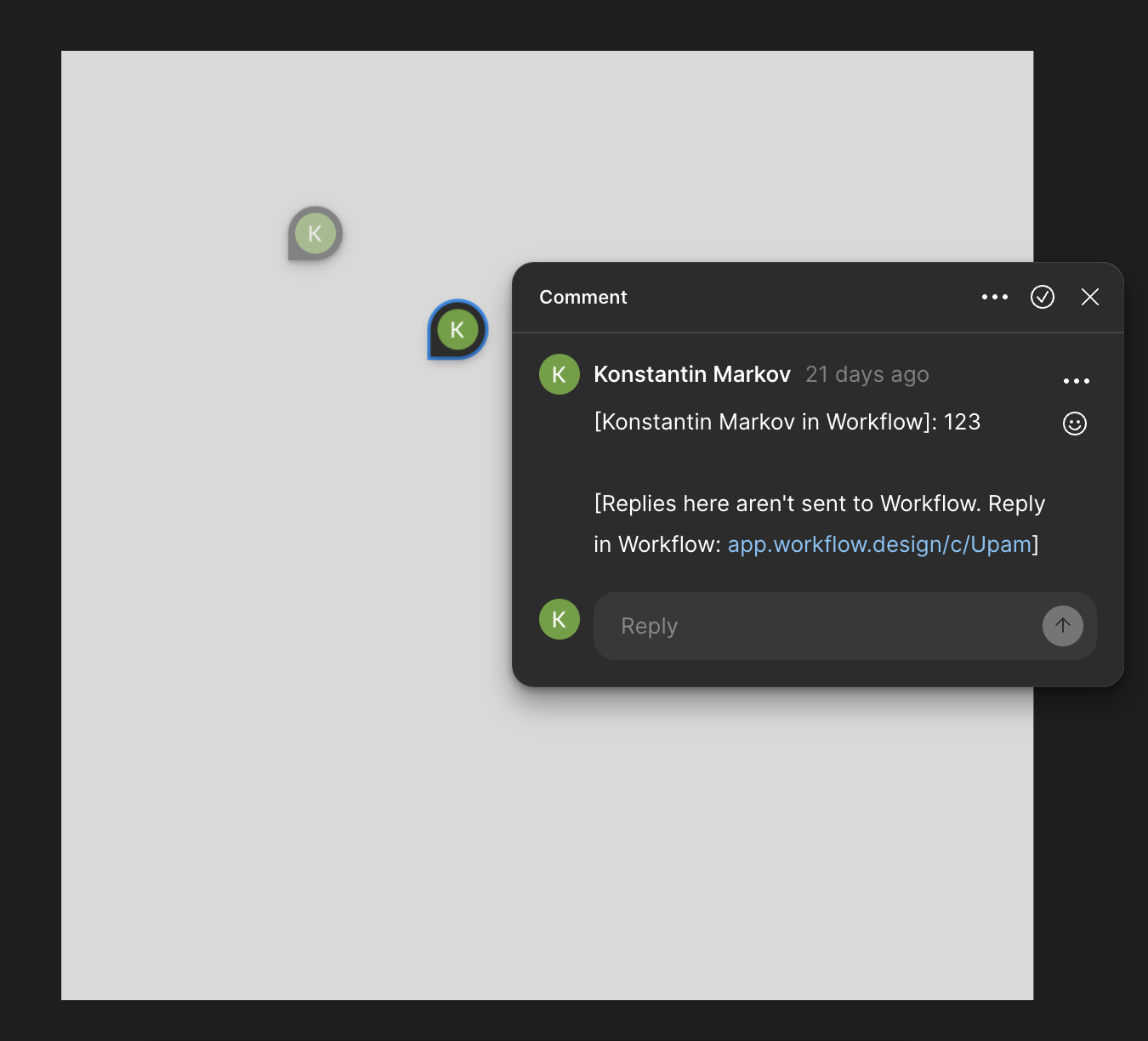
One-way comment sync: Comments made in Workflow on Figma designs sync to Figma automatically. However, comments made directly in Figma do not appear in Workflow. Keep this in mind when choosing where to leave feedback during your design review process.
Comments left in Workflow will show up in Figma like this:
Step 1: Authorize Figma in Workflow
Before you can sync comments between Figma and Workflow, connect your Figma account.
Open Workflow and click your account menu (typically in the top right).
Select Settings to open the settings modal.
In the USER section, click Figma.
Read the description: "Send comments made on a Figma design in Workflow back to Figma."
Click Connect to Figma button.
A Figma authorization page will open. Review the permissions Workflow is requesting (file read and comment write access).
Click Authorize in Figma to confirm.
You'll see a confirmation message: "Figma API connection added." Your Figma account is now connected.
Authorization complete! You can now add Figma content to Workflow and your comments will automatically sync to Figma.
Step 2: Add Figma content to Workflow
You can add Figma designs and prototypes to Workflow in two ways: using the Figma plugin (recommended for full features) or by pasting a link.
Option A: Add Figma designs using the plugin (recommended)
Using the plugin gives you automatic comment synchronization and keeps your Figma work seamlessly connected to Workflow.
In Workflow, click Add (or press Cmd+C).
Select Figma from the asset options.
Choose Figma design.
You'll see instructions with a link to install the Figma plugin. Click Get Figma plugin.
The Figma Community page will open. Click Install to add the Workflow plugin to your Figma account.
Return to your Figma file and open the Workflow plugin (search for "Workflow" in your plugins panel).
Inside the plugin, click Open in....
Select the Workflow workspace and document where you want to add this design.
Click Run in the plugin to upload your Figma file to Workflow.
Return to Workflow. Your Figma design will appear as a new version in your document.
Bulk add frames: The Figma plugin can upload multiple frames at once. Select multiple frames in your Figma file before clicking "Open in..." to add them all in a single upload.
Option B: Add Figma prototypes using a link
This method is faster for sharing prototypes, but comments require you to open the prototype in Figma to respond.
In Figma, right-click on a prototype and select Get link, or use the share button to copy the prototype link.
Make sure the link is set to "Anyone with the link can view" so it's publicly accessible.
In Workflow, click Add (or press Cmd+C).
Select Figma, then choose Figma prototype.
Paste your Figma prototype URL in the field.
Click Add.
The interactive prototype will now appear in your Workflow document.
Step 3: Leave comments and sync feedback
Commenting on Figma designs (plugin-uploaded)
Open the Figma design in your Workflow document.
Click anywhere on the design to leave a comment, or use the commenting tools to highlight specific areas.
Type your feedback and submit the comment.
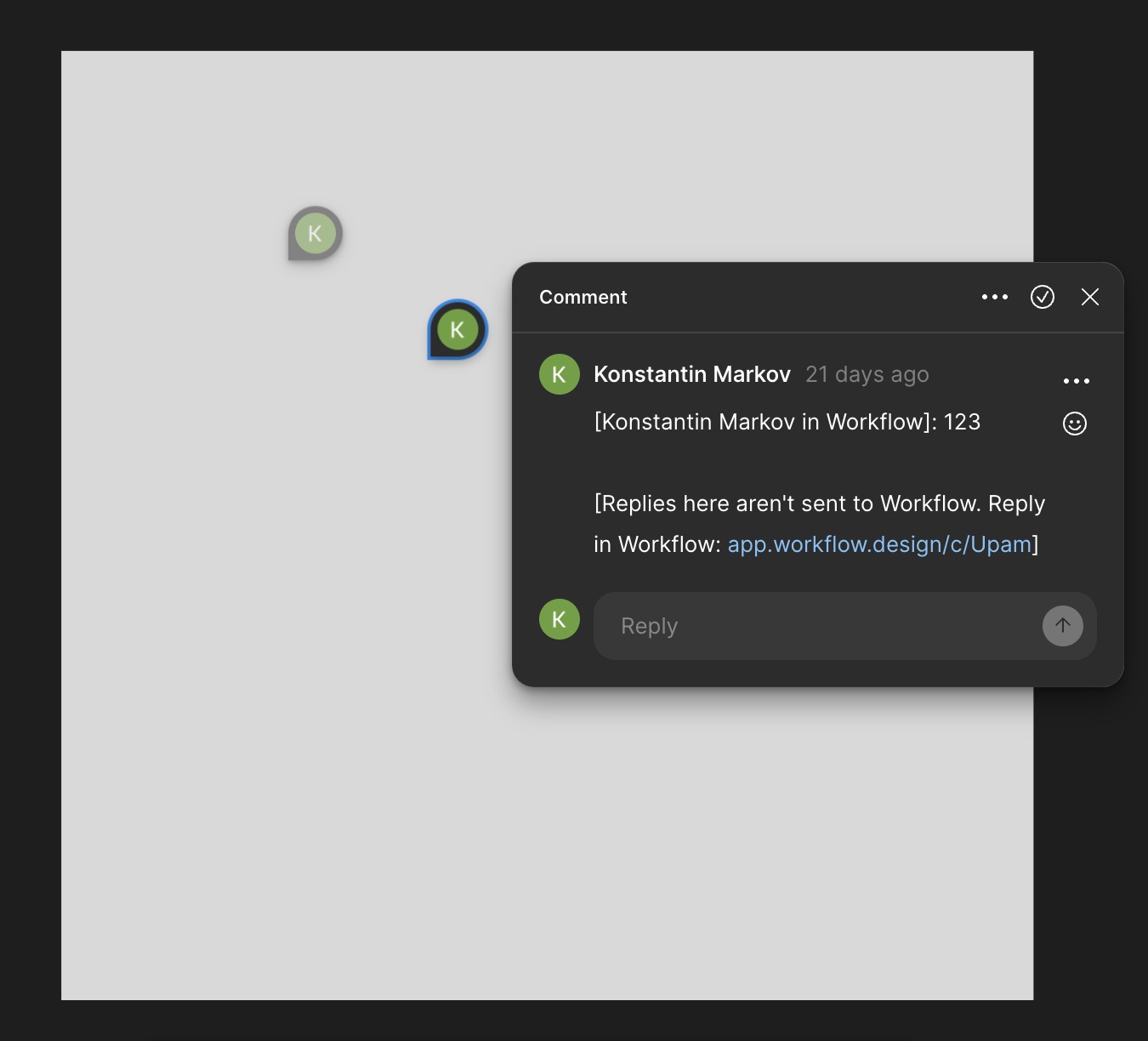
Your comment will automatically sync to the Figma file. In Figma, it will appear with your Workflow username and include a link back to your review.
Replies to your comments stay in Workflow (they are not synced back to Figma).
Comment synced: Check your Figma file to see your feedback appear as a comment. Your team can see exactly what feedback came from your Workflow review.
Comments left in Workflow will show up in Figma like this:
Commenting on Figma prototypes (link-based)
Click on a Figma prototype in your Workflow document to leave a comment.
A dialog will appear saying "Open this prototype in Figma to comment."
Click Comment in Figma to open the prototype in a new Figma tab.
Leave your comment directly in Figma.
Return to Workflow to track the feedback in your review document.
Viewing feedback in both tools
In Workflow: All feedback appears in your document timeline, organized by version and asset. You can see who commented, when, and track revisions as designers update their work.
In Figma: Comments you leave in Workflow appear as file comments on the design. Your team working in Figma will see these flagged and can respond directly. Figma comments do not appear in Workflow, so use Workflow as your single source of truth for feedback.
Resolving comments
You can mark comments as resolved in Workflow to keep track of which feedback has been addressed. Resolving helps you and your team stay organized during design reviews.
How to resolve a comment in Workflow
Locate the comment you want to resolve in your document's comment sidebar.
Hover over the comment to reveal the action buttons.
Click the Resolve button (checkmark icon). The tooltip will confirm "Resolve."
The comment will move to the Resolved tab in your sidebar, showing "[User name] resolved this comment."
Finding resolved comments: Open the sidebar and click the Resolved tab to see all resolved comments. If you don't see the tab, use the keyboard shortcut Shift+h to toggle the "Hide resolved comments" filter.
Unresolving a comment
If you need to reopen a resolved comment:
Go to the Resolved tab in your sidebar.
Find the comment you want to unresolve.
Hover over the comment and click the Unresolve button.
The comment will return to the active comments list.
Understanding resolution sync with Figma
It's important to understand how comment resolution works between Workflow and Figma:
Resolution does not sync to Figma: When you resolve a comment in Workflow, that resolved status is only visible in Workflow. The corresponding comment in Figma will remain open and unresolved. Your team working in Figma will not see the resolved state automatically.
This is because the Figma integration is a one-way connection—comments created in Workflow are sent to Figma, but status updates (like resolution) and comments created in Figma are not synced back to Workflow.
Best practice: If your team needs to know that feedback has been addressed in both tools, consider:
Adding a reply in Workflow confirming the issue is fixed before resolving
Manually resolving the corresponding comment in Figma after resolving in Workflow
Using Workflow as your single source of truth for tracking resolved feedback
Permission required: You need comment-write permission in the document to resolve comments. If you don't have this permission, you'll be prompted to request access when you try to resolve.
Advanced workflows and power user tips
Learn advanced techniques for complex design reviews, multi-stage approvals, client feedback loops, and project organization. See Advanced Figma integration workflows for detailed examples and best practices.
Troubleshooting
If you encounter issues with the Figma integration, check the Troubleshooting Figma integration issues guide for detailed solutions covering authorization problems, comment syncing failures, plugin errors, and more.
Limitations
One-way comment sync: Comments you leave in Workflow sync to Figma, but Figma comments do not appear in Workflow.
Plugin required for full sync: Only designs uploaded via the Figma plugin support automatic comment syncing. Figma prototype links require manual commenting in Figma.
Reply comments stay in Workflow: When you reply to a comment on a Figma design in Workflow, that reply is only visible in Workflow, not synced to Figma.
Resolution status does not sync: Resolving a comment in Workflow does not mark it as resolved in Figma. Likewise, resolving a comment in Figma does not update the status in Workflow.
File access required: You must have access to the Figma file in your Figma account. Private files or files without proper sharing cannot be added.
OAuth timeout: Figma OAuth authorization must be completed within 3 minutes or the connection will expire.
What's next
Add your first Figma design to a Workflow document and leave feedback to test comment syncing.
Invite your team to Workflow and have them leave comments on shared Figma designs.
Create Workflow documents organized by project and add multiple Figma files to each for centralized feedback.
Related guides
Advanced Figma integration workflows – Multi-stage reviews, client feedback loops, and project organization strategies
Troubleshooting Figma integration issues – Solutions for authorization, syncing, plugin, and prototype problems