
Workspaces vs Projects
Workspaces and projects are the two main levels of organization in Workflow. Understanding the difference helps you decide how to structure your work—whether you're collaborating with clients or working across multiple agency teams.
Quick comparison
Workspace | Project | |
|---|---|---|
What it is | Your account's home—contains all your projects, team members, billing, and branding | A single piece of work—contains tasks, documents, versions, feedback, and approvals |
Who has access | Teammates and Creatives added at the workspace level | Members and Guests added to that specific project |
What's managed here | Team membership, billing plan, branding colors, workspace settings, archive | Project status, project members, start/end dates, versions, comments, approvals |
Billing impact | Creative seats are counted and paid at the workspace level | Projects don't affect billing directly—guests are free |
Workspaces: for your team and billing
A workspace is your organization's account in Workflow. It's where you manage:
Team members — Add teammates and creatives who need access to all projects in your workspace
Billing — Your subscription and paid seats (Creatives) are managed here
Branding — Sidebar colors, email backgrounds, and other workspace-wide visual settings
Settings — Workspace preferences like default approval settings and archive
When you invite someone as a Teammate, they get access to every project in your workspace. This is ideal for internal team members who need to collaborate across everything you're working on.
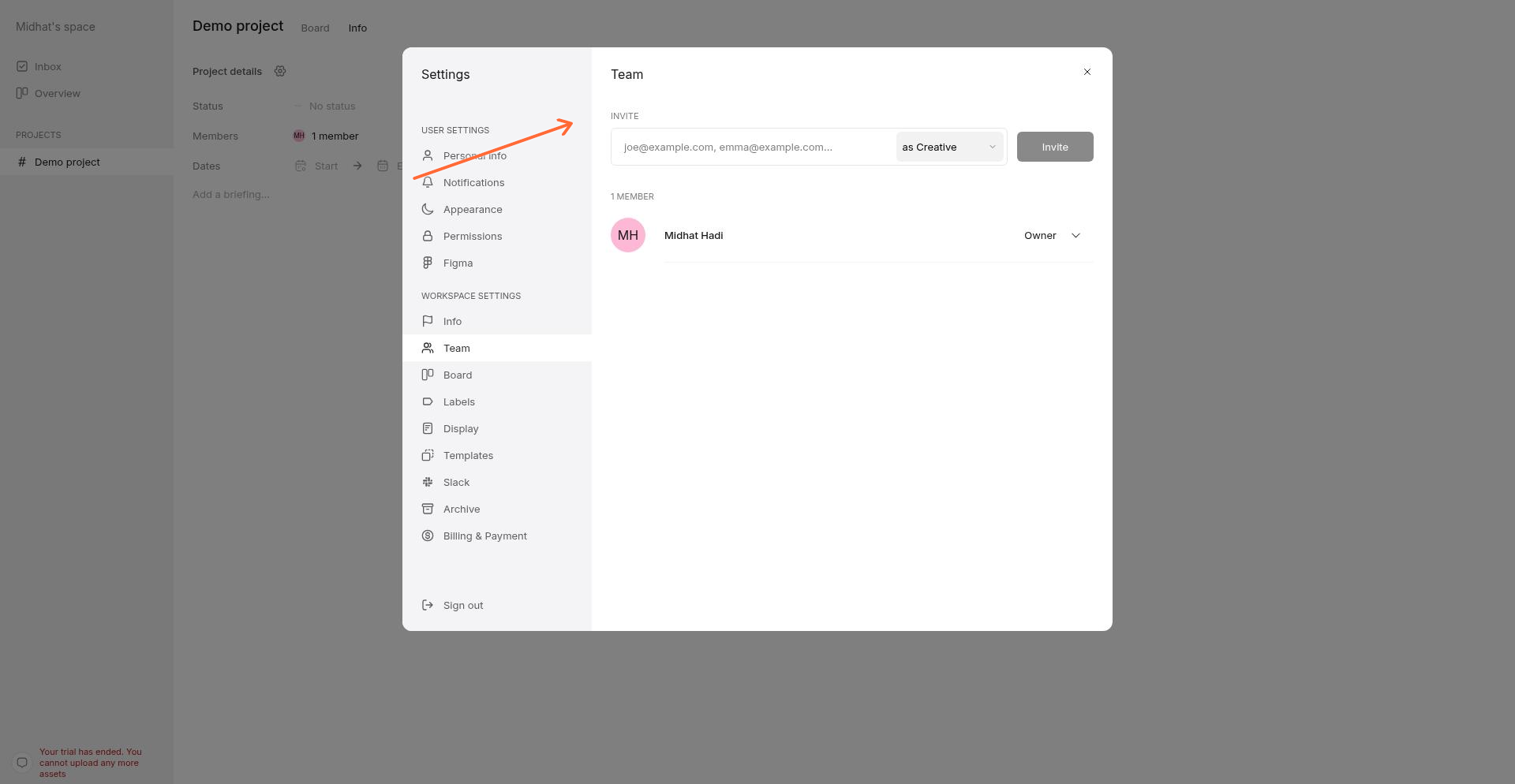
Workspace-level team management — invite people who need access to all your projects.
Projects: for individual pieces of work
A project is where the actual work happens. Each project contains:
Tasks and documents — The designs, websites, files, or presentations you're reviewing
Members — People with access to this specific project
Status and dates — Planned, In progress, Completed, Paused, or Cancelled — plus start and end dates
Versions — Iteration history with comparisons and approvals
Comments and feedback — All discussions about this work in one place
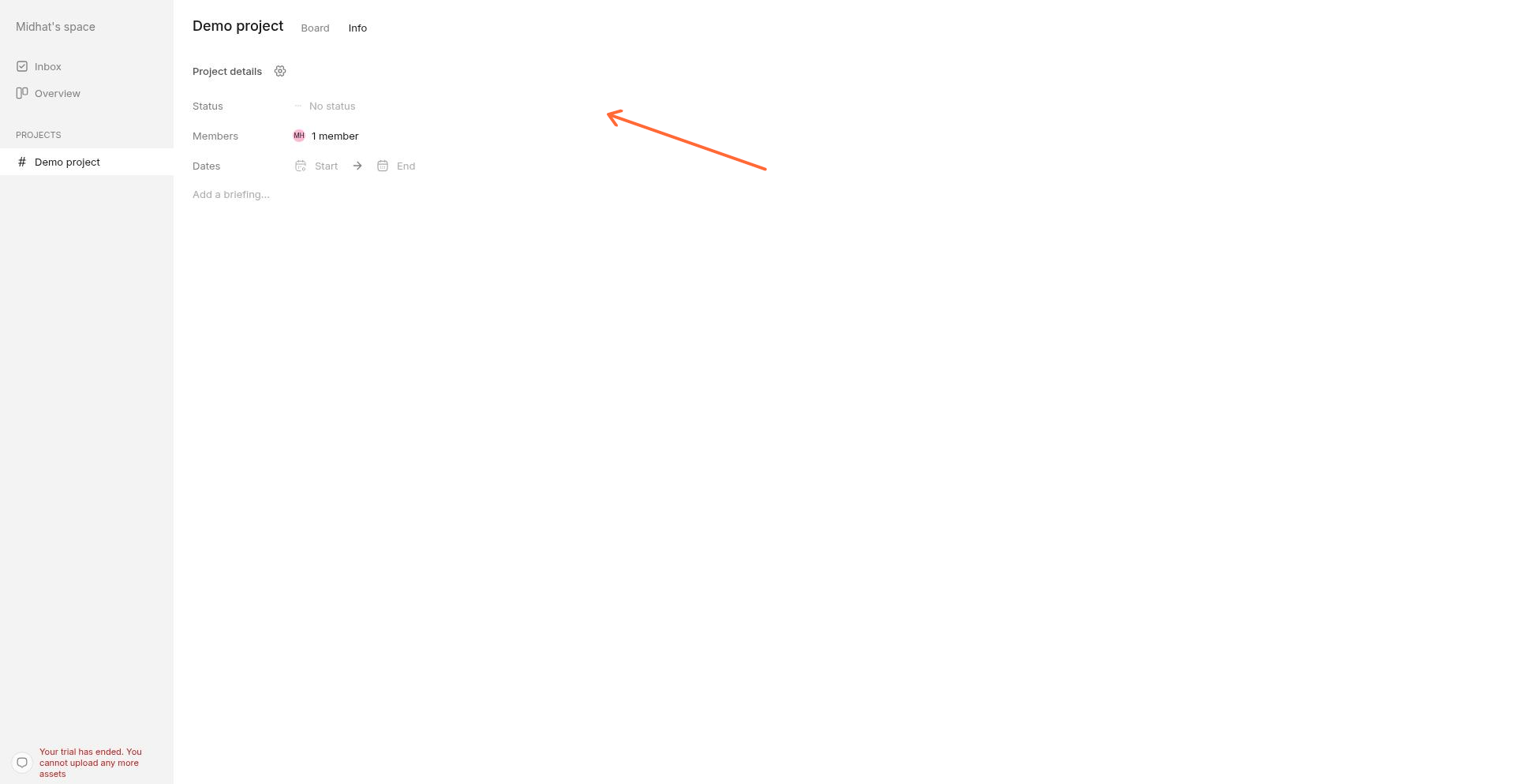
Project details — status, members, and dates are scoped to this project only.
When to use each
Use projects for client work
When you're working with clients, each client relationship typically gets its own project. This lets you:
Invite clients as Guests who only see that one project
Keep other clients' work completely private
Set project-specific status and deadlines without cluttering your workspace view
Archive or complete projects when the engagement ends
Clients added as guests cannot see your other projects, your team settings, your billing, or any workspace-level information. They see only what's relevant to their project.
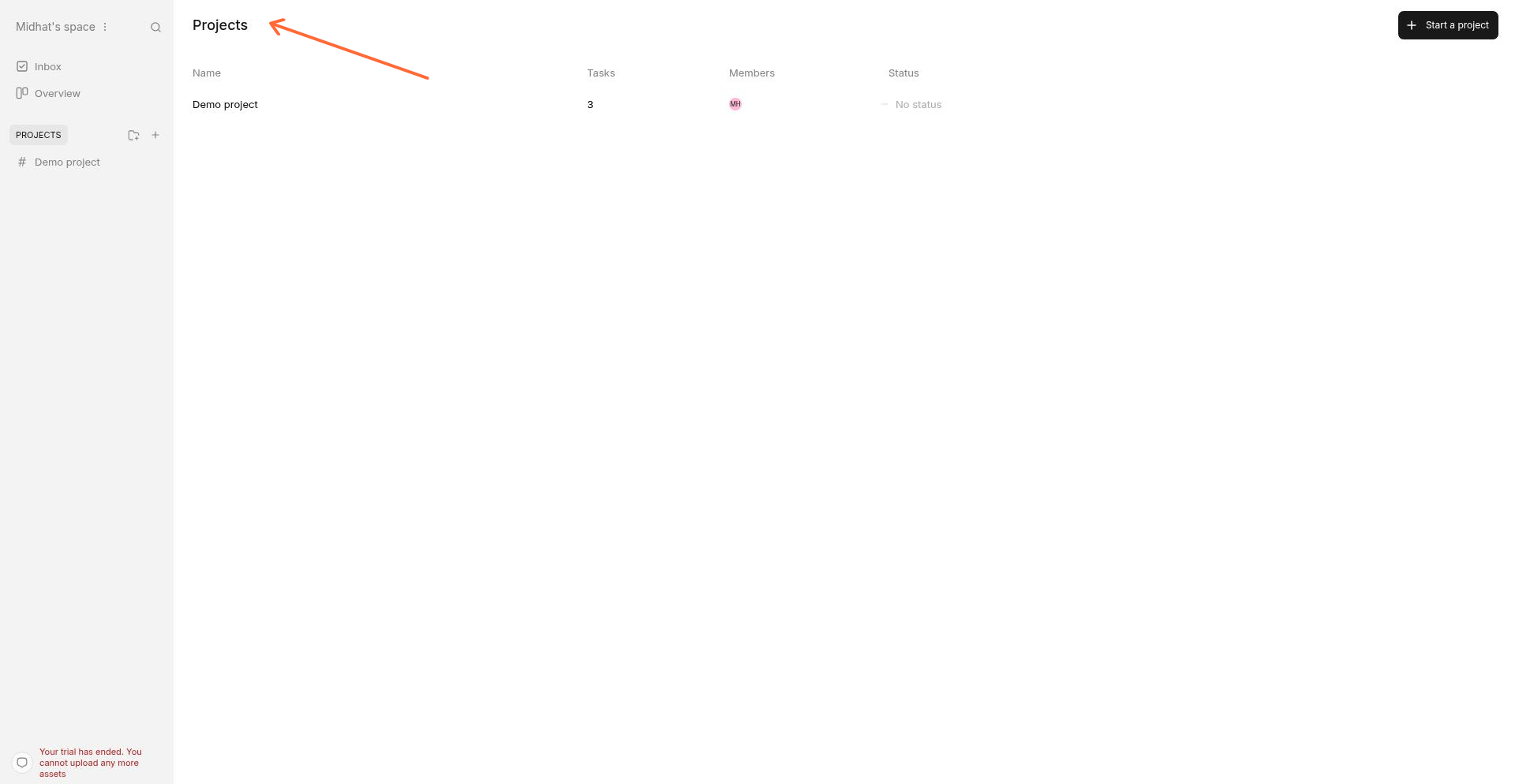
Each project is separate — ideal for keeping client work organized and private.
Use workspaces for agency teams and individual contributors
When you're an individual contributor or small team working across multiple clients or departments, your workspace is your hub. This is where you:
Add teammates who need visibility across all projects
Manage your subscription and paid Creative seats
Set branding that applies across every project
Switch between projects quickly without managing separate permissions
Teammates added at the workspace level can see and collaborate on every project — no need to invite them to each one individually. This is efficient for small agencies or solo designers juggling multiple clients from one account.
Related content
The Difference Between Teammates, Guests, and Share Links — How access levels work
Managing Roles and Permissions — What each role can do
Getting Started — Everything starts with a project