
Sharing work
Share links let you send your work to anyone for feedback—no account required for reviewers. They can open the link and leave comments immediately.
How to share a link
Open the task or document you want to share.
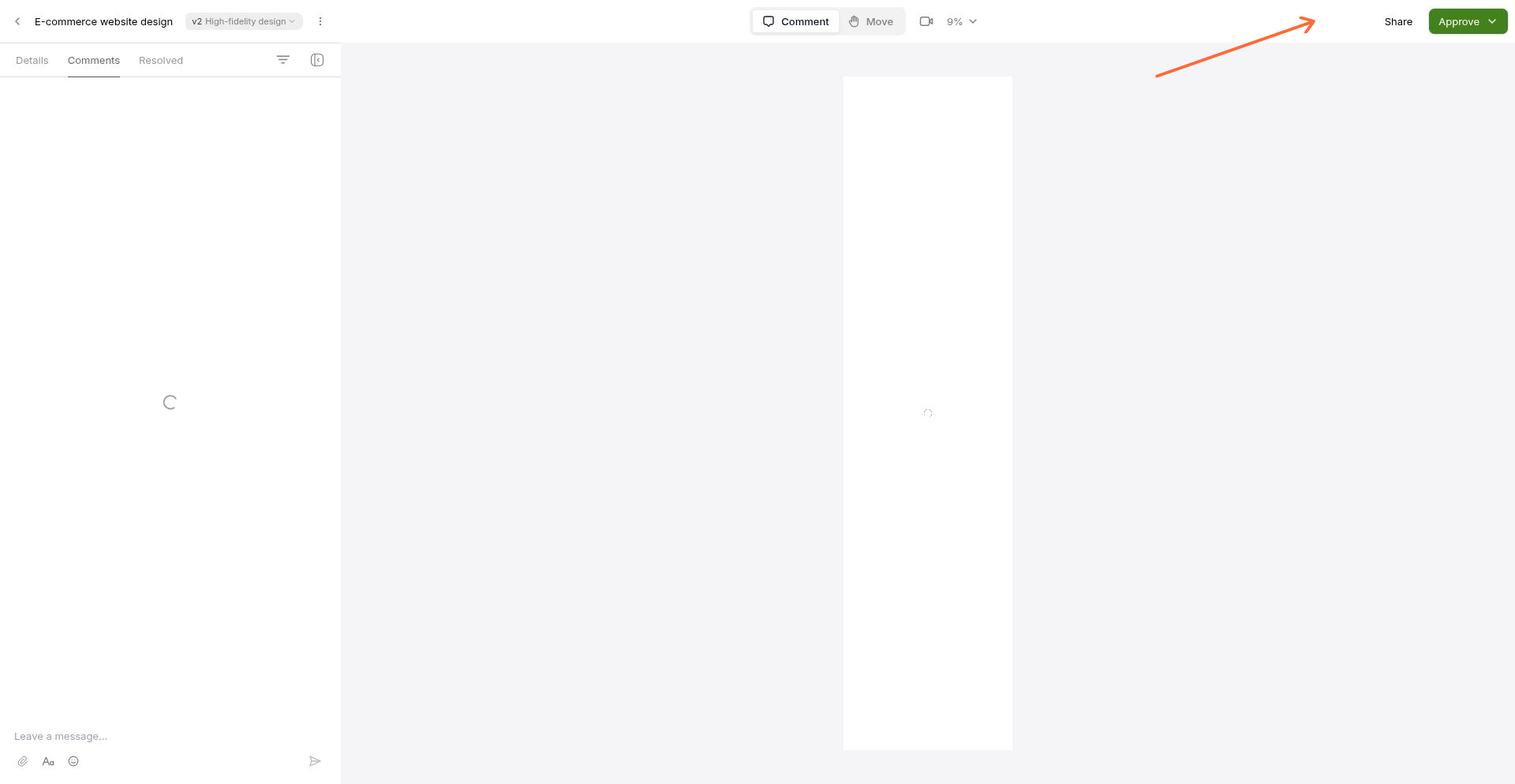
Click the Share button in the top toolbar.
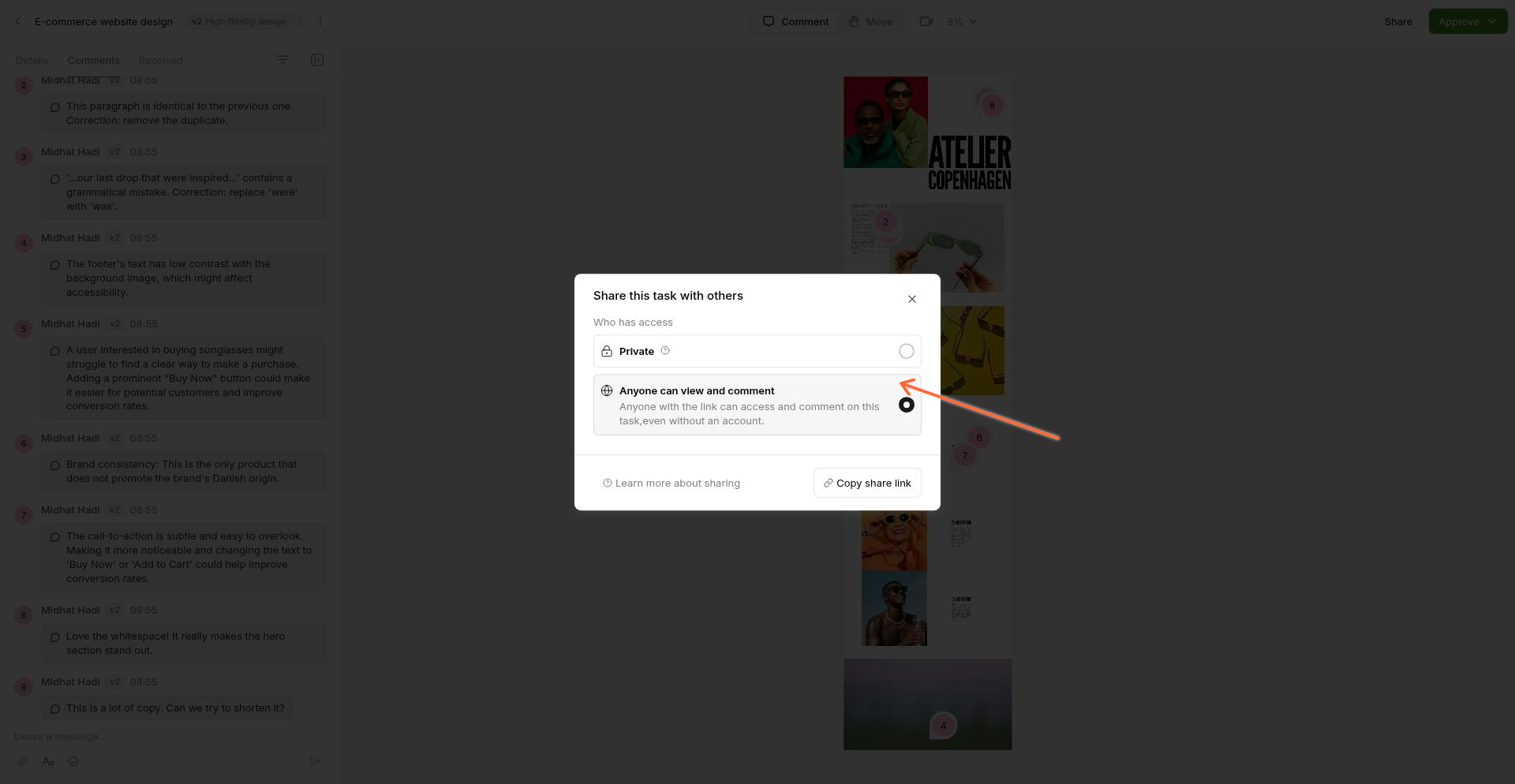
In the share modal, choose who can access your work, then click Copy share link.
Send the link to your reviewers via email, Slack, or any messaging app.
Share options
You control who can access your work through the share modal.
Private
Only you and invited teammates or guests can view the task. This is the default setting for new tasks.
Anyone can view and comment
Anyone with the link can view your work and leave comments—no account or sign-up required. Reviewers simply open the link and click anywhere on the design to leave feedback.
This is ideal for:
Sharing work with clients for quick feedback
Collecting input from stakeholders outside your team
Getting input from anyone who doesn't need ongoing project access
Adding context with a video introduction
A video introduction helps reviewers understand your design decisions and provide better feedback. Walk them through your thought process and highlight key areas of your work.
Record a video intro
Use the screen recorder to create an introduction for your shared work. When reviewers open your link, they'll see your recording in the sidebar and can click to watch it.
Show or hide your camera
When starting a recording, you can choose to show your camera bubble for a personal touch, or hide it to use your screen and voice only.
Adding context with text
If you prefer not to record a video, you can add a text message to introduce your work:
Open the Comments tab in the sidebar.
Click Add message… at the bottom left.
Type your introduction to provide context for reviewers.
What reviewers can and can't do
When you share a link with Anyone can view and comment:
Reviewers can:
View the specific task or document you shared
Leave comments anywhere on the design
Watch any video introductions or walkthroughs you've recorded
Follow guided tours you've created
Reviewers cannot:
Access other tasks in your project or workspace—share links are task-specific
Record video feedback (if they're anonymous and haven't signed in)
Receive email notifications unless they provide their email when commenting
Share links grant access to one specific task. If you need someone to see an entire project, invite them as a guest instead.
Share links vs. guest access
Share links and guest invitations work differently:
Share link | Guest access | |
|---|---|---|
Account required | No—anyone with the link can view | Yes—guests log in with Google or email |
Access level | One specific task or document | Entire project you've invited them to |
Best for | Quick feedback on a single deliverable | Ongoing collaboration on a project |
For a full comparison of access types, see Teammates, Guests, and Share Links.
What reviewers see
When reviewers open your share link, they see a focused view of your work with a simple comment sidebar. They can click anywhere to leave feedback—no training or onboarding needed.
For more details about the reviewer experience, see What Reviewers See.