
Why isn't my embedded website working in Workflow?
Overview
When you add a live website to Workflow for review, the site loads inside an iframe—an embedded browser window within Workflow. This allows reviewers to interact with your site and leave comments directly on specific elements.
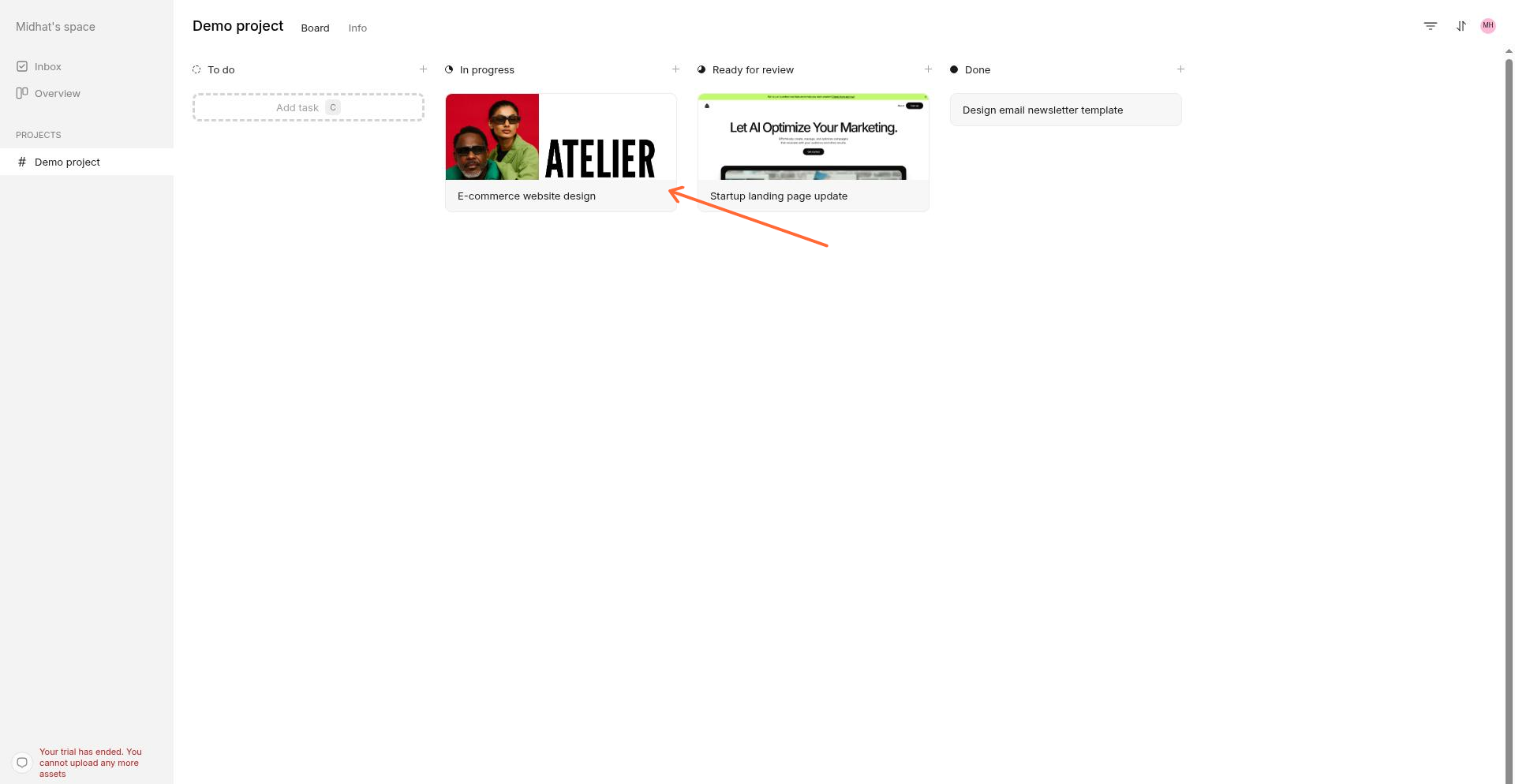
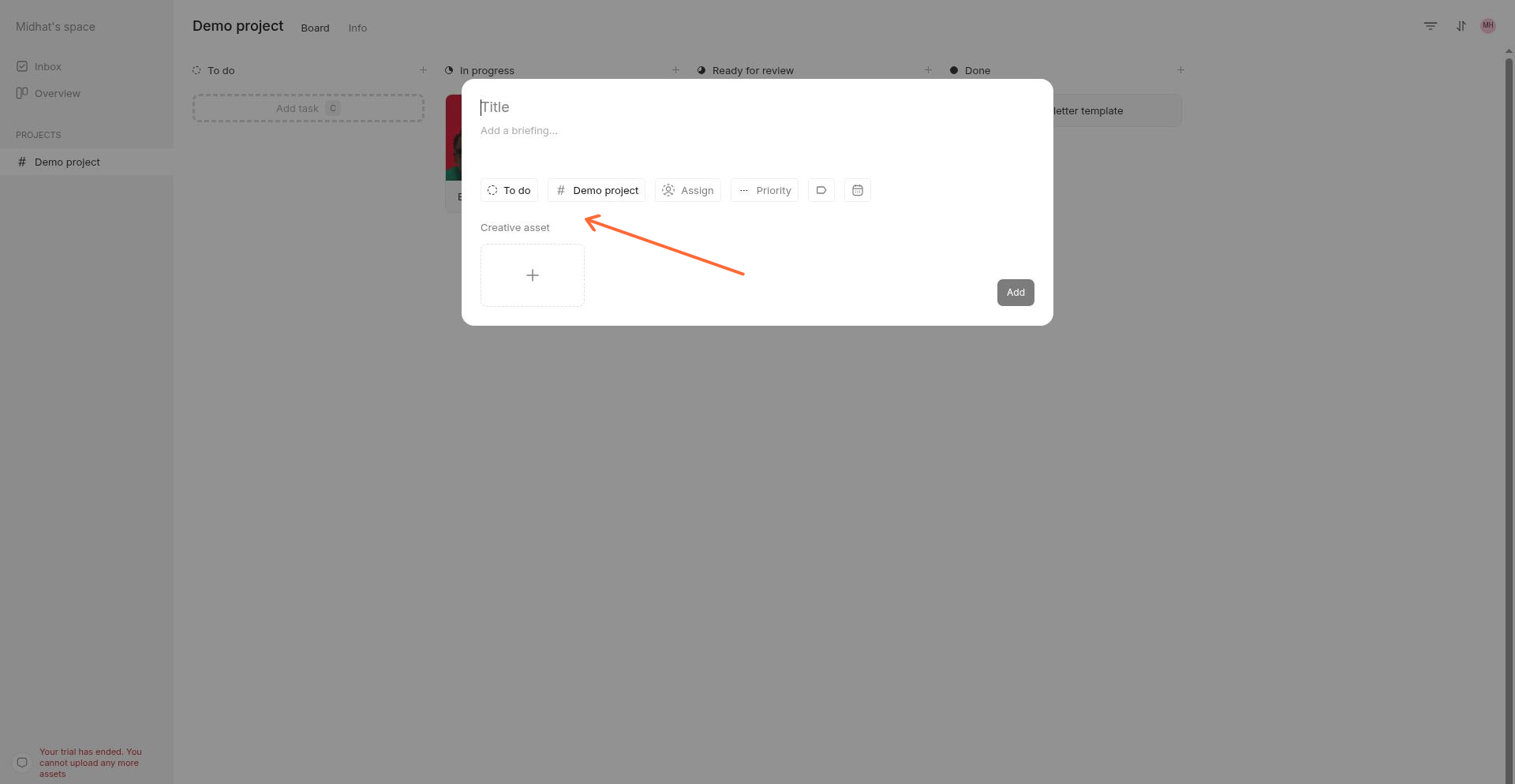
To add a live website, create or open a task and select theoption to add a creative asset—you can paste your website URL there.
However, some websites don't work fully when embedded. You might see:
Blank or partially loaded pages
PDF links that trigger browser errors (like "This page has been blocked")
Images or galleries that don't display
Interactive features that don't respond
The entire site refusing to load
This article explains why these issues happen and what you can do about them.
Why embedded websites sometimes fail
Workflow loads live websites inside an iframe. Modern browsers have security policies that restrict what content can do when embedded in another site. These restrictions exist to protect users, but they can also block legitimate functionality when a site is viewed through Workflow.
The big point: Your site works on its own because browser security policies only apply when content is embedded in an iframe on a different domain. When viewed directly, those restrictions don't exist.
Common causes
Content Security Policy (CSP) restrictions
Many websites set a Content Security Policy header that controls which resources can load and from where. When your site is embedded in Workflow (workflow.design), the browser may block:
Images loaded from CDNs or external domains
Scripts required for interactive features
Fonts and stylesheets from third-party services
PDFs opened from links inside the embedded page
Cross-Origin Resource Sharing (CORS) blocking
If your website loads data from APIs or external services, those requests may be blocked when the site is embedded. The browser sees Workflow and your website as different "origins," and cross-origin requests are often blocked for security.
X-Frame-Options blocking
Some websites set an X-Frame-Options header that prevents the site from being embedded in iframes at all. This causes the entire site to display as blank or show an error message in Workflow.
Sandbox restrictions
Browsers sandbox embedded content for security. Certain actions that work fine on the standalone site may be blocked inside an iframe, including:
Opening new browser windows or tabs (
window.open(),target="_blank")Accessing cookies or localStorage from the parent page
Triggering downloads
JavaScript detecting iframe embedding
Some websites include JavaScript that checks if the page is embedded in an iframe (by checking window.top or window.parent) and intentionally disables features or redirects away when detected.
Common symptoms and solutions
Symptom | Likely cause | What to do |
|---|---|---|
PDF link shows "blocked by Chrome" or similar error | PDFs opened via | Ask your developer to modify PDF links to open inline or use a PDF viewer component instead of opening a new window |
Images or galleries display blank or broken | Images loaded from external domains (CDNs) are blocked by CSP or CORS policies | Ensure your CSP header allows images from all sources your site uses, or host images on the same origin |
Entire page is blank | Site blocks iframe embedding entirely ( | Remove or adjust the |
Interactive elements don't work | Required scripts blocked by CSP, or JavaScript disabled for embedded contexts | Adjust CSP to allow necessary scripts, or check ifJavaScript intentionally disables features in iframes |
Product variants don't update images (WooCommerce, Shopify, etc.) | Variant scripts may make cross-origin requests or rely on features blocked in iframes | Check with your ecommerce platform about iframe compatibility, or review CSP/CORS headers for product data endpoints |
Site works on standalone URL but not in Workflow | Iframe-specific security restrictions are preventing embedded functionality | Test your site in an iframe locally, then adjust security headers or use alternative review methods |
What to do next
If you're experiencing issues with an embedded website, we recommend:
For Workflow users: Share this article with your developer or site administrator—they'll need to adjust your site's configuration.
For developers: Follow our detailed fix guide for embedded website issues to diagnose and resolve specific problems with code examples and configuration changes.
Quick workaround: Use Workflow's screenshot and screen recording features instead of embedding the live site—this bypasses iframe restrictions entirely.
What your developer can check
If you're working with a live website that doesn't display correctly in Workflow, share this section with your developer or site administrator.
1. Content Security Policy (CSP)
Check your site's CSP header. For embedded content to work fully, you may need to:
Add
workflow.designtoframe-ancestors(or use*for public review sites)Ensure
img-srcincludes all image sources your site usesInclude necessary script and style sources in
script-srcandstyle-src
Example CSP adjustment for iframe embedding:
Content-Security-Policy: frame-ancestors 'self' *.workflow.design;2. X-Frame-Options
If your site sets X-Frame-Options: DENY, it cannot be embedded anywhere. If set to SAMEORIGIN, it can only be embedded on pages from the same domain.
For external embedding to work, either:
Remove the
X-Frame-Optionsheader entirely, orUse CSP
frame-ancestorsinstead, which gives you more granular control
3. CORS configuration
If your site makes API calls to load data (common for dynamic content, ecommerce variants, galleries), ensure your API endpoints allow cross-origin requests from Workflow.
4. PDF link behavior
Links that open PDFs in new windows/tabs often fail in iframes. Alternative approaches:
Display PDFs inline using a PDF viewer library
Use
<embed>or<object>tags instead ofwindow.open()Link to PDFs that open in the same frame rather than a new window
Testing your site in an iframe
Before adding your site to Workflow, you can test iframe compatibility locally:
Create a simple HTML file with an iframe pointing to your site:
<!DOCTYPE html>
<html>
<head><title>Iframe Test</title></head>
<body>
<iframe src="https://your-website.com" width="100%" height="800px"></iframe>
</body>
</html>
Open the HTML file in your browser
Check the browser console (F12) for CSP, CORS, or iframe-related errors
Testall interactive features: menus, forms, image galleries, PDF links, etc.
If features don't work in this test, they won't work in Workflow either.
Alternative approaches
If you can't modify your site's security headers or if certain features simply don't work embedded, consider these alternatives:
Screenshots and screen recordings
Use Workflow's screenshot and video recording features to capture your website instead of embedding the live site. This works around embedding restrictions entirely and is often the fastest solution for client reviews.
Learn more: What creative formats does Workflow support?
Static staging site
If your production site has strict security headers, consider using a staging site with relaxed CSP/X-Frame-Options for review purposes.
Password-protected sites
Password-protected sites work in Workflow, but reviewers will need to enter the password. If the password page itself has embedding restrictions, reviewers may see a blank screen before they can log in.
What Workflow can and cannot change
Workflow cannot override your site's security policies. The browser enforces CSP, CORS, and X-Frame-Options headers—Workflow has no control over these restrictions.
What Workflow can do:
Embed your live site in an iframe
Pass through password authentication for protected sites
Display whatever your site allows to be embedded
What Workflow cannot do:
Bypass CSP or CORS restrictions
Override X-Frame-Options headers
Enable features that your site's JavaScript disables in iframes
Getting help
If you've checked the issues above and your site still isn't working correctly in Workflow, contact [email protected] with:
The URL of the site you're trying to embed
A description of what's not working (blank page, specific elements failing, error messages)
Screenshots of any browser console errors
Whether the site works correctly when viewed outside of Workflow
This information helps us identify whether the issue is with iframe restrictions, a Workflow bug, or something specific to your site's configuration.
Related articles: For developer-focused troubleshooting steps, see How to fix embedded website issues in Workflow. For more on supported formats and browser requirements, see What creative formats does Workflow support? and Mobile Browser Support and Limitations.