
Add images and creative assets to a task
You can upload images, PDFs, videos, live websites, and Figma files to tasks in Workflow. This guide explains how to add multiple creative assets when creating a task, and how to add more assets after a task already exists.
Add multiple images when creating a task
When you create a new task, you can attach multiple files in the same upload session.
Click Add task in your project.
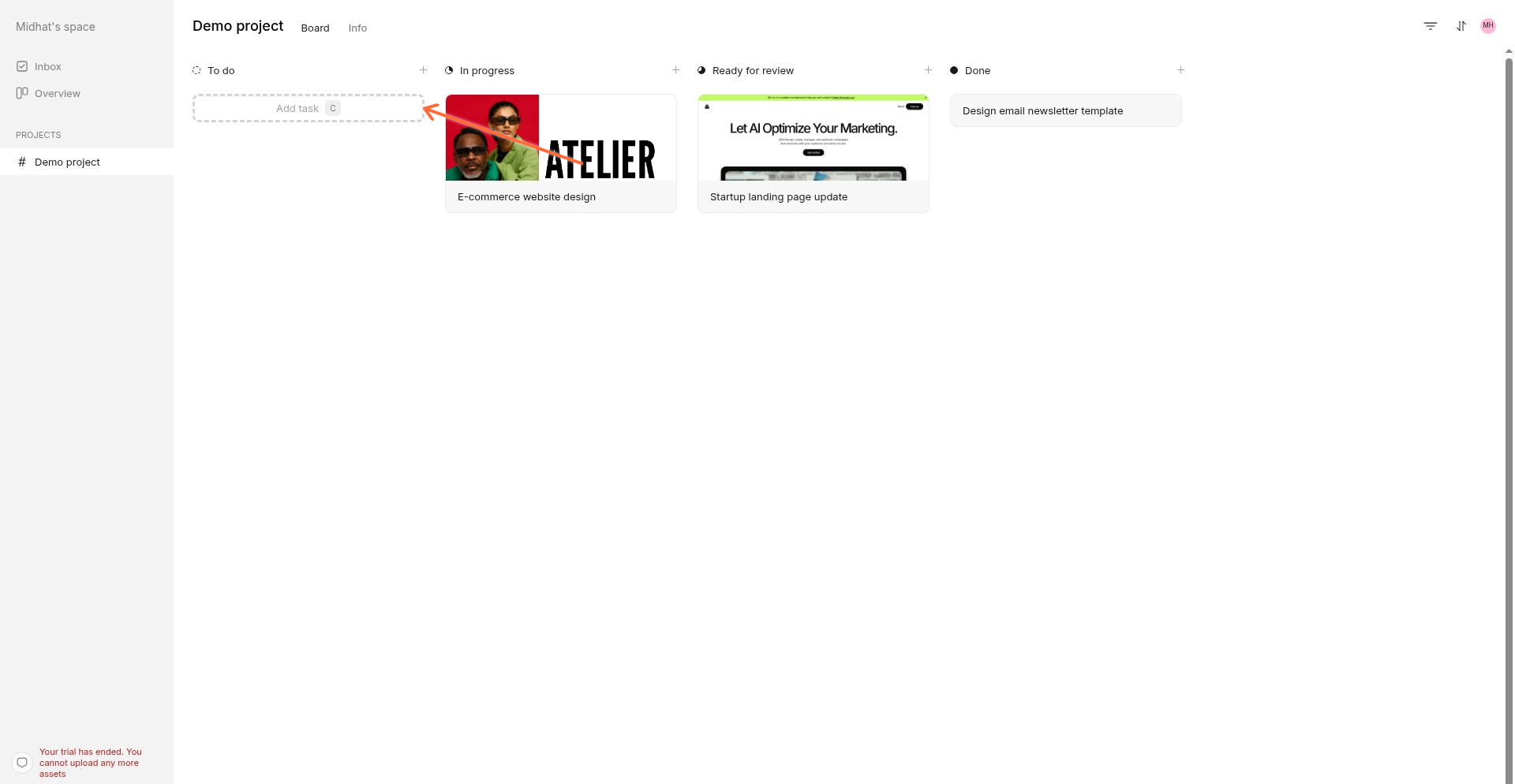
Drag and drop multiple files onto the upload area, or click Select to choose files from your device.
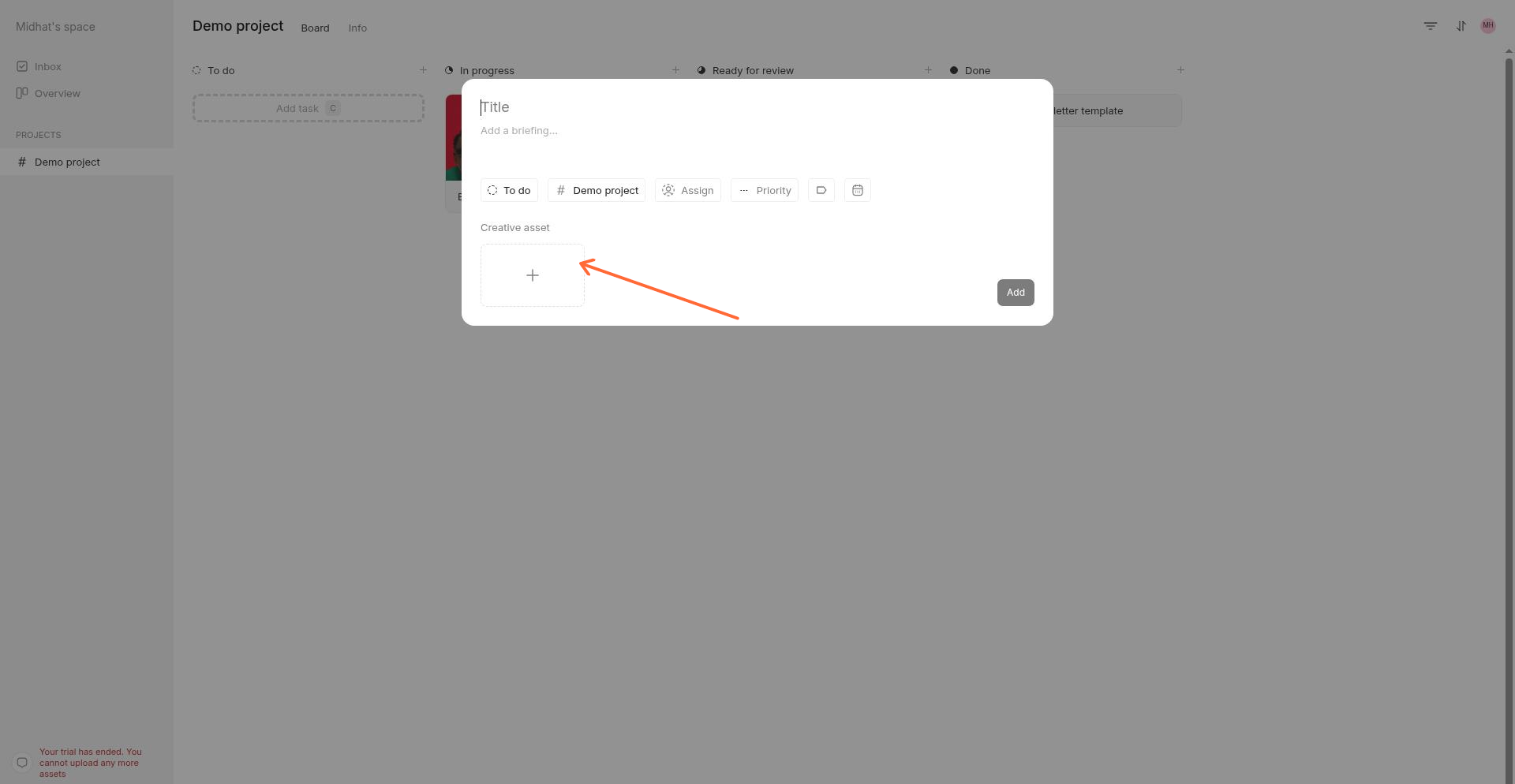
The upload area shows each file you've added. You can continue adding more files before you finalize the task—the file list appends new selections rather than replacing existing ones.
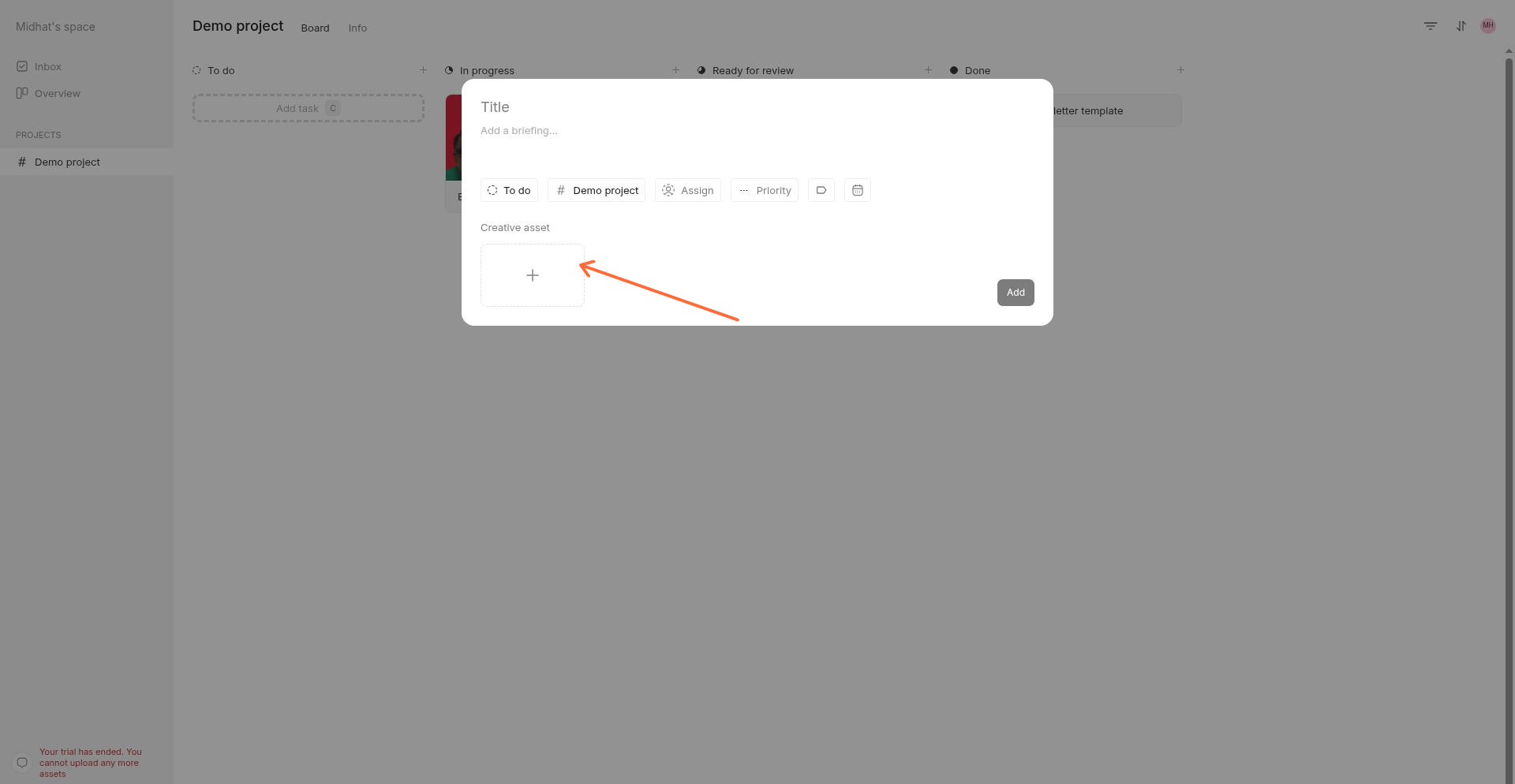
If you leave the task title empty and have multiple files, Workflow auto-fills the title to "Multiple files."
Click Add to create the task with all attached files.
You can mix file types in the same task—images, PDFs, videos, and live site links can all be added together before you click Add.
Add more images after a task is created
After a task exists, you can't edit the existing attachment list directly. Instead, Workflow uses versioning to add more files.
Open the task you want to add files to.
Click the version selector in the top left of the screen.
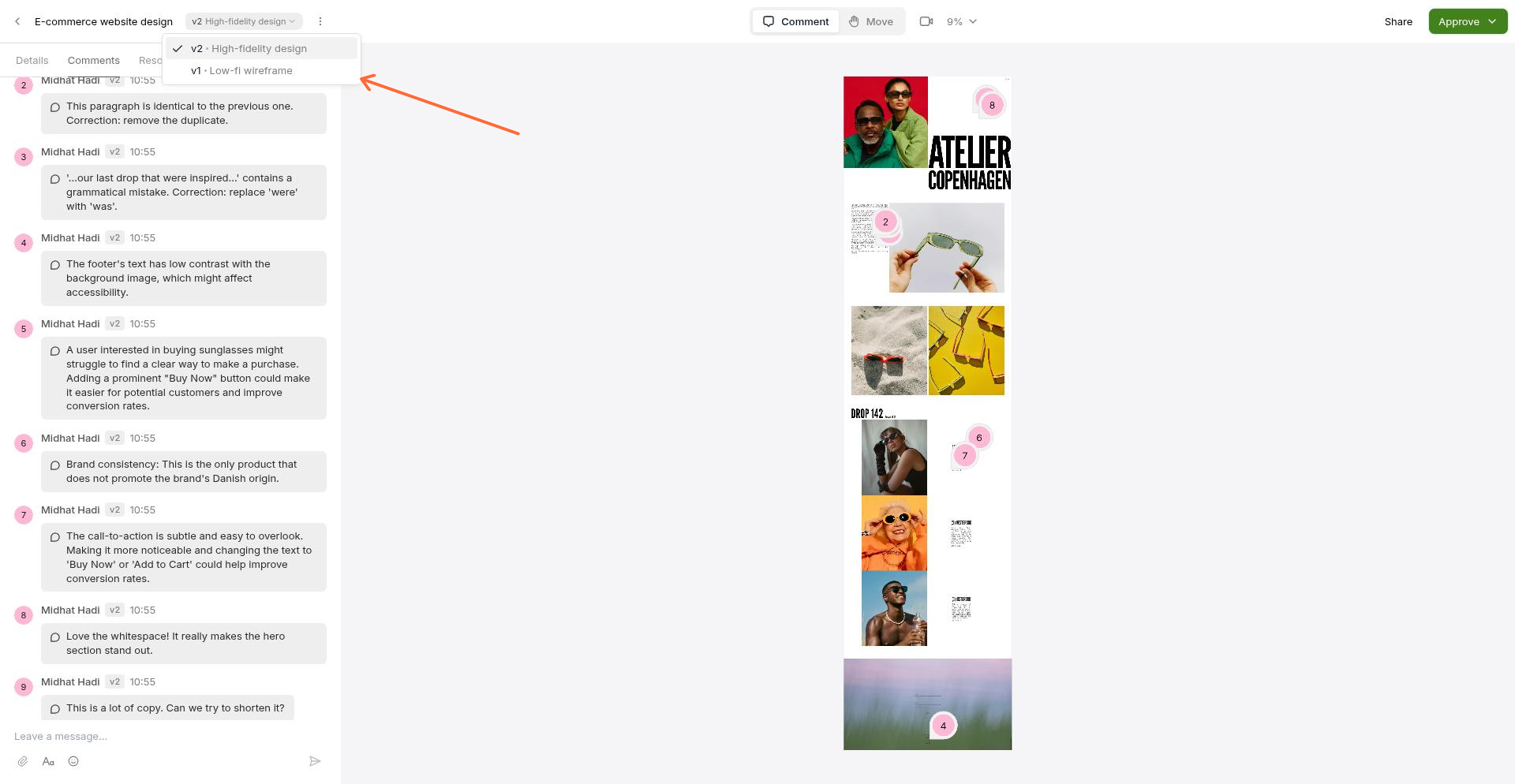
Click Add version.
Upload your additional images or files.
This creates a new version of the task's content rather than replacing the original files. For more on versioning, see Versions.
Supported formats and limits
Each file must be 5GB or smaller. Workflow supports common image formats, PDFs, videos, and live website links. For the full list of supported formats, see What creative formats does Workflow support?
Who can upload creative assets
Creative Seat holders can upload files to tasks.
Guest users and view-only members cannot upload creative assets.
For more on managing team roles and permissions, see Task Management.